Calendar & Slack Etiquette¶
Home / Company / Policies / Calendar & Slack Etiquette
We run async-first with a small team. An accurate calendar and clear Slack signals let people plan around each other without pinging to ask "are you around?" This doc is the standard for three things: marking time off on your calendar, setting your Slack status and hours, and declining meetings you can't make.
No approvals needed. Time off here is notify, not ask — just make it visible. This doc is about keeping each other in the loop, not gatekeeping.
Quick reference¶
| Situation | Google Calendar | Slack status | Slack notifications |
|---|---|---|---|
| Vacation / PTO (1+ days) | Out of Office event, all-day, auto-decline on | 🏝️ PTO — back <date> · clear after: last day |
DND scheduled for the whole window |
| Out half a day+ (\~4 hrs / a full morning or afternoon) | Out of Office block for the hours | 🌤️ Out this afternoon, back ~<time> · clear after: Today |
Optional DND for the block |
| Appointment (any length) | Out of Office block for the slot | 📅 At an appointment, back ~<time> · clear at that time |
— |
| Sick | Out of Office (day) | 🤒 Out sick · clear after: Today |
DND for the day |
| Remote / traveling but reachable | Optional; nothing required | 🏠 Remote today / ✈️ Traveling — slower to respond |
Keep normal |
Weekends: nothing required unless you will be completely offline and won’t be available on Slack to respond
1. When to block your calendar¶
Put it on the calendar (as Out of Office — see §2) whenever you'll be unavailable during the workweek for:
- PTO / vacation — any full or multi-day time off.
- Half a day or more — roughly 4+ hours, or a full morning or afternoon.
- Appointments — doctor, dentist, etc. Block these even if short, because they sit in a specific slot someone else might try to book.
- Any block where you'll be genuinely unreachable during the day — travel, an offsite errand, and the like.
Anything smaller than that — a coffee run, lunch, stepping away for twenty minutes — is judgment; you don't need to calendar it. Weekends are up to your discretion in case you’d like to work; nothing to mark.
Also drop a one-line heads-up in [#general] so it's on people's radar, not just buried on a calendar they'd have to go check. (Set the canonical channel here once and keep it consistent.)
2. How to block time on Google Calendar (Out of Office)¶
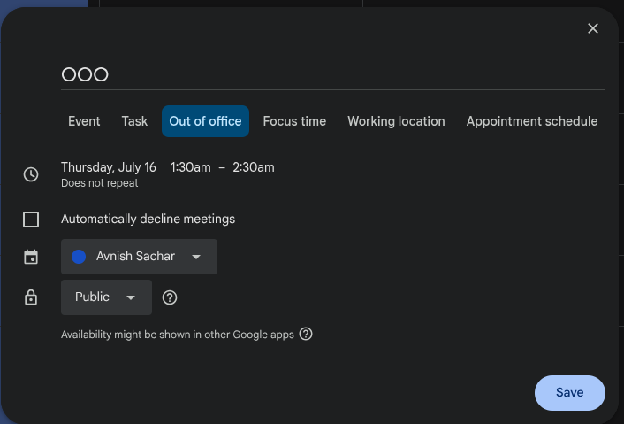
Use the Out of office event type — not a regular event. It does two jobs at once: it shows you're away, and it auto-declines conflicting meeting invitations with a message you write. So for a vacation you don't have to decline every invite by hand.
On "mark it as free": every event has a Free / Busy setting, and the two do opposite things. Busy blocks the time so people see you're unavailable; Free shows you as available and lets people book right over it. A day off should read as unavailable, so use Out of office (which sets you to Busy and auto-declines) — not Free. Reserve "Free" for things you want visible but that shouldn't block scheduling (e.g., an FYI marker).
Web¶
- Click Create (top-left) — or click the day/time you want to block.
- Choose the Out of office tab (next to Event, Task, Appointment schedule).
- Set the start and end dates. Toggle All day on for full days; uncheck it and set a time range for a partial block.
- Under the decline settings, choose whether to decline new invitations only or new and existing meetings in that window.
- Edit the decline message — answer three things: when you're back, who to contact if urgent, and (optional) whether there's an urgency path. Example: "Out until Mon May 12 — will follow up when I'm back. For anything urgent, ping [name]."
- Save.
Mobile (Google Calendar app)¶
- Tap the + (bottom-right) → Out of office.
- Set the date/time range.
- Adjust decline settings and edit the decline message.
- Save.
Two things to know:
- Out of office requires our Google Workspace account (we have it). It won't appear on a personal Gmail.
- Auto-decline is most reliable for new invites. Meetings you've already accepted before setting the OOO don't always get declined automatically — so before a vacation, skim the week and manually decline (or hand off) anything already on the books. See §5.
3. Setting your Slack status¶
Your status is the fastest signal — most people glance at it before deciding whether to DM you.
How¶
- Click your profile picture (top-right) → Update your status (or click your current status text to edit it).
- Pick a preset (🗓️ In a meeting, 🚌 Commuting, 🤒 Out sick, 🏝️ Vacationing, 🏠 Working remotely) — or click the emoji and type a custom message (up to 100 characters).
- Set Clear after so it expires on its own: Don't clear, 30 min, 1 hour, 4 hours, Today, This week, or a custom date/time. Don't leave a stale "back at 2pm" up for three days.
- Optionally check Pause notifications to go quiet for the same window. People can always text each other in case of any pressing matters
- Save.
What to use when¶
- PTO / vacation: 🏝️
PTO — back <date>· clear after the last day. - Out part of the day: 🌤️
Out this afternoon, back ~4pm· clear after: Today. - Appointment: 📅
At an appointment, back ~<time>· clear at that time. - Sick: 🤒
Out sick· clear after: Today. - Remote / traveling: 🏠
Remote todayor ✈️Traveling — slower to respond. - Quick step-away:
/status :coffee: brb 15in any message box is the fastest path.
Rule of thumb: if it's on your calendar, reflect it in your status too. They're independent — setting one does not set the other.
5. Declining meetings you can't make¶
Declining happens in Google Calendar, and doing it early is the whole courtesy — it frees the organizer to adjust.
- Open the event → set your RSVP to No (Yes / No / Maybe are on the event).
- Add a short note if it helps — or click "Propose a new time" to suggest an alternative. E.g., "Can't make this — happy to review notes async, or let's push to Thurs."
- For a recurring meeting, choose whether you're declining this event or all events — don't drop the whole series when you only have one conflict (and vice versa).
When to also say something in Slack¶
- Last-minute (same-day) — DM the organizer so they actually see it in time.
- You're the organizer — cancel or propose a new time; don't just leave it hanging.
Questions or edge cases → [#general]. Keep this doc as the source of truth and update it when our norms change.